Reviewer Flow
Work through each step in order when reviewing an annotation. Newly claimed tasks have 4 hours from claim for Annotators, Reviewers/QC, and Auditors. Returned tasks have 12 hours from return before being recirculated. Finish and submit within the applicable window; once it expires, the task can be pulled from your queue.
An LLM Judge now pre-screens annotations against the common error categories and passes or fails each one, with reasoning on failures. Steps 4–6 below cover your role in verifying the Judge. For full agree/disagree guidance, the feedback scenario blueprint, and worked examples, see LLM Judge Feedback.
Check the Task Type
Check the task type first, then follow its rule.
- Annotator_Skip: The annotator skipped the image. If the image is unusable, route it to Unusable. Everything else goes to Skipped.
- QualityCheck: A standard review. Work through Steps 1–9 below.
- Audit_I: Client audit /
Audit_IIfailures are currently routed back here and appear like otherwise normalAudit_Itasks. Always check theAudit_IIfeedback tab on everyAudit_Itask before proceeding.
- Incorrect Audit_II feedback: At the bottom of the
Audit_Ifeedback for the specific prompt, select Yes for Do you want to rebuttal Audit_II feedback? Explain the issues clearly and thoroughly in the box that opens, then approve and submit like any other task passingAudit_I. - Correct Audit_II feedback: Try to fix the issue yourself and resubmit using the standard no-send-back flow. Do not return it to the annotator. Rerun after prompt changes; do not retry an unchanged prompt after a correct model answer.
- Truly unusable or unsalvageable image: If you are stuck, report it in the task thread in the reviewer/auditor Slack channel. Do not spend too much time on scrapped tasks. They are unpaid because there is no submitted annotation. Do not log a Handshake AI task for scrapped work; abandon it if already started.
Steps 1–9 below describe standard QC. Their send-back instructions do not apply to Audit_II failures routed to Audit_I; use the workflow above for those tasks.
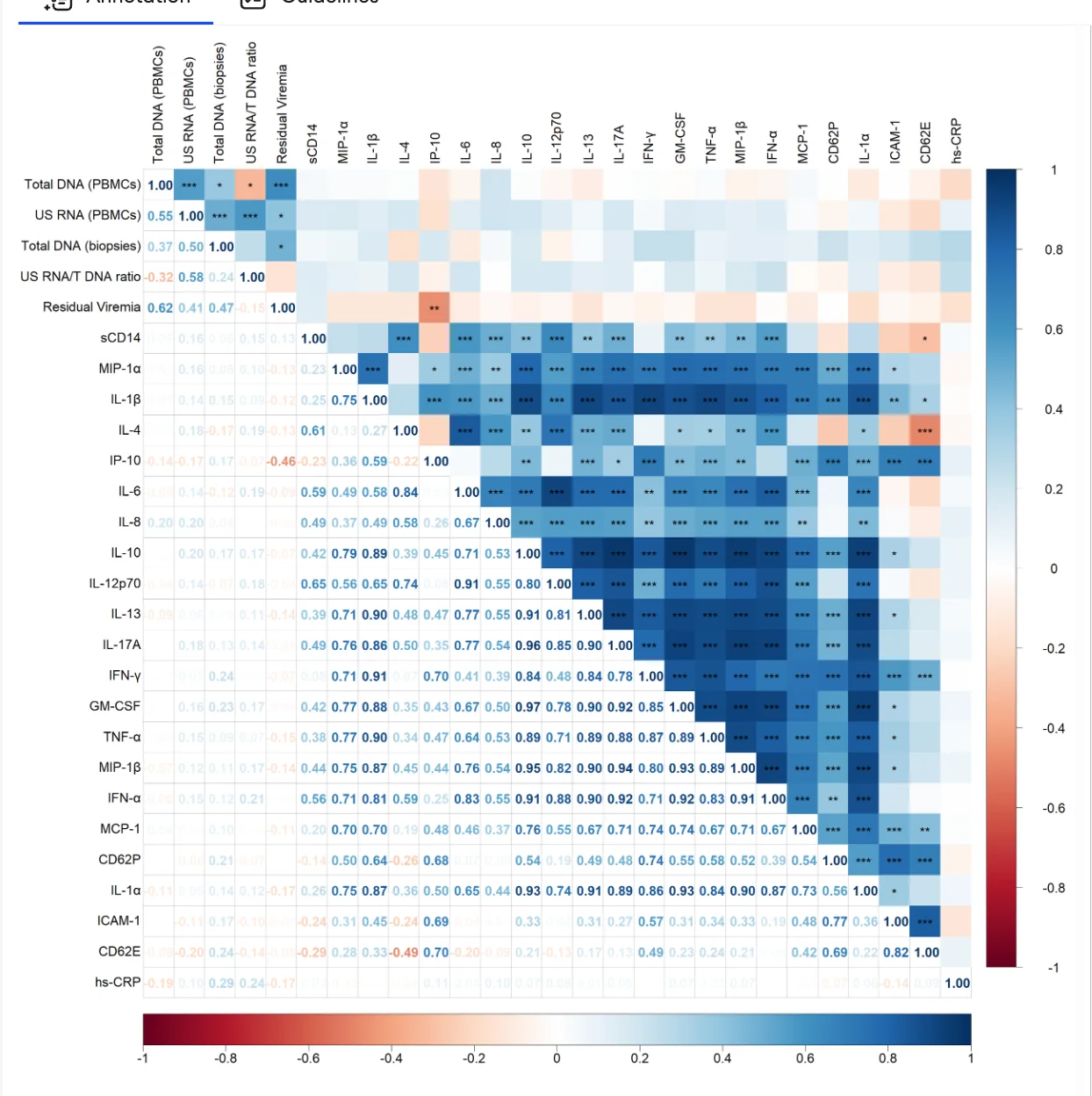
Step 1: Review the Image
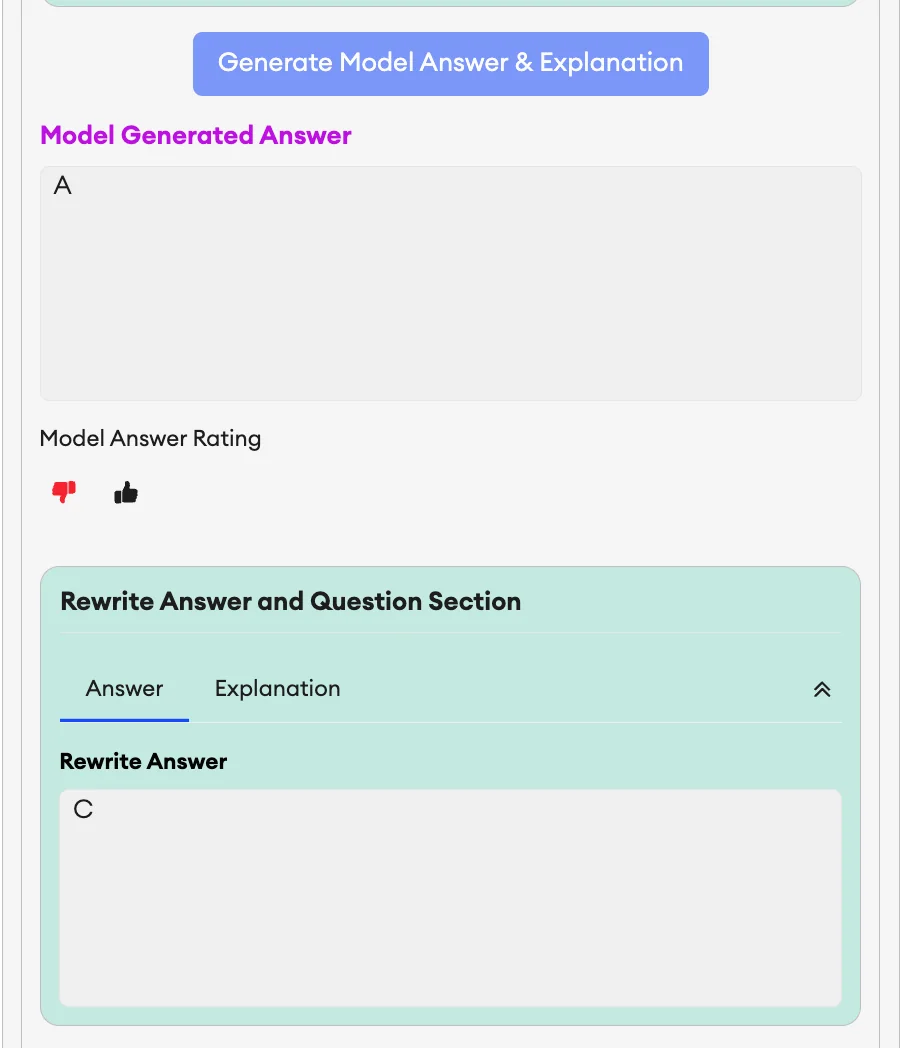
Step 3: Check the Question & Note Common Errors
Review the question and identify any common errors in the annotation. Record your findings in the individual QC boxes for each annotation.
Step 4: Evaluate the LLM Judge Verdicts
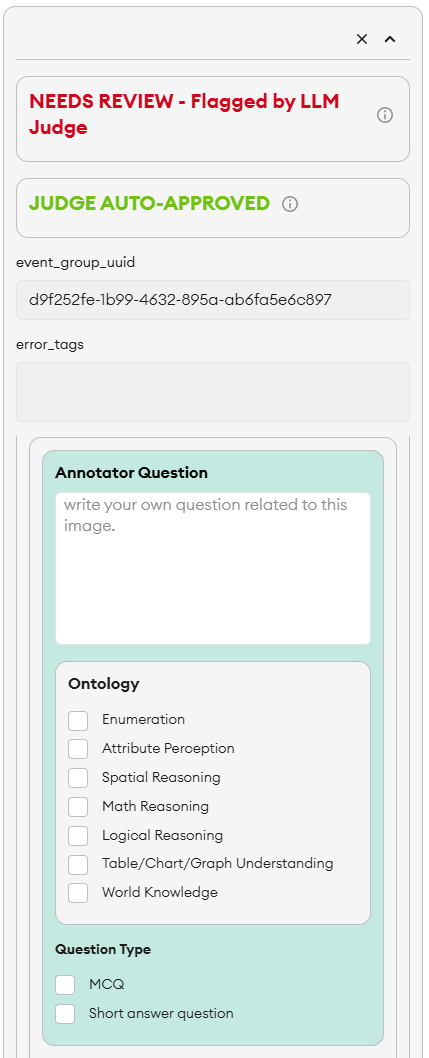
The LLM Judge feedback is a table of the common error categories, with a summary of the specific errors it flagged displayed above the table. Some areas of a criterion may be excluded from the table if they are covered by programmatic checks.
For each category verdict, verify that the Judge's pass/fail determination is accurate and that its justification for any failure is sound. Select Agree (👍) or Disagree (👎) on every row — all Judge decisions must be annotated before you submit.
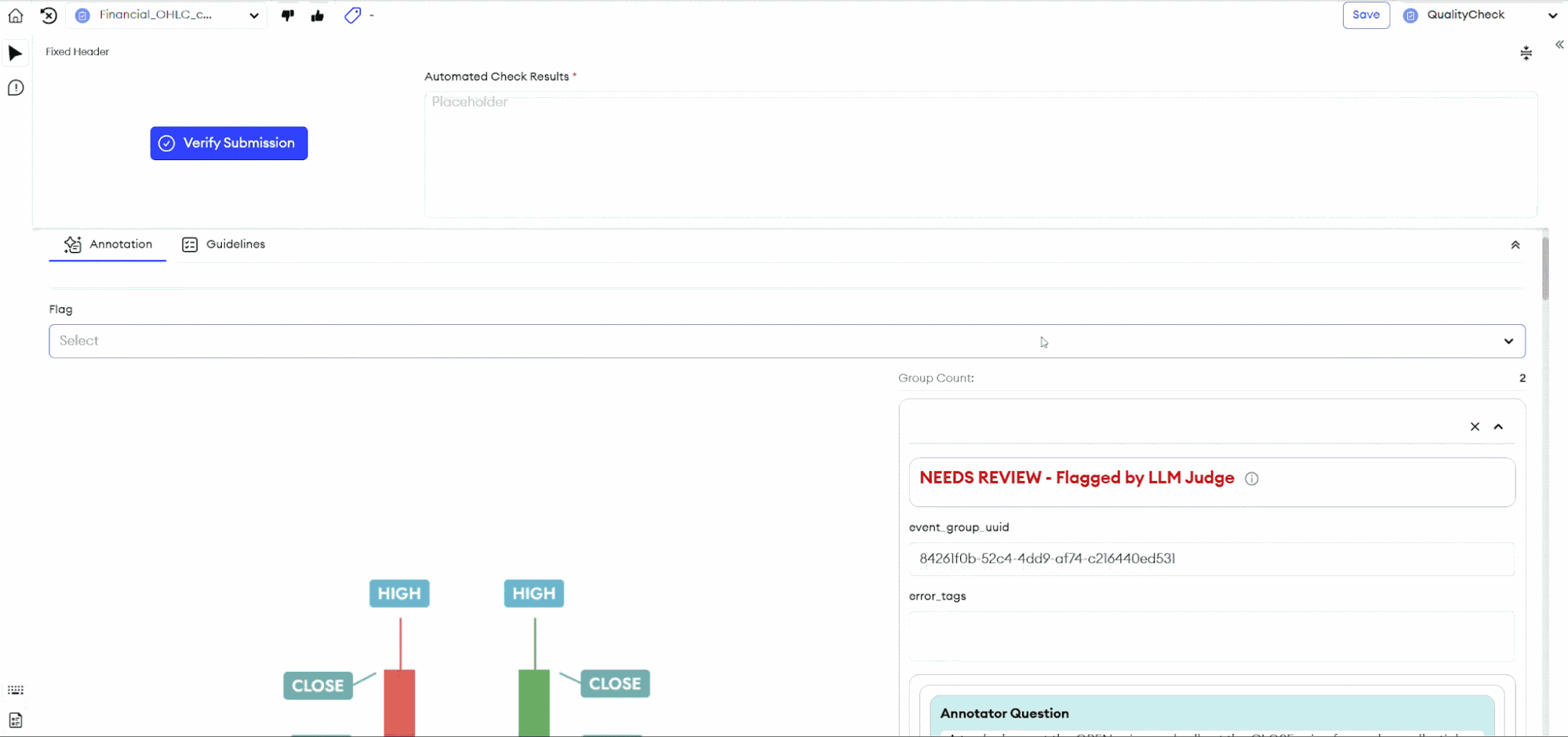
When the Judge passes a category, no reasoning is provided. This is expected behavior — don't disagree with a verdict just because the reasoning is blank.
See LLM Judge Feedback for full guidance on when to agree vs. disagree.
Step 5: Provide Feedback on the Judge's Verdicts
A notes area appears when you select a category row. For ease of use, the notes field opens automatically when you disagree with the Judge.
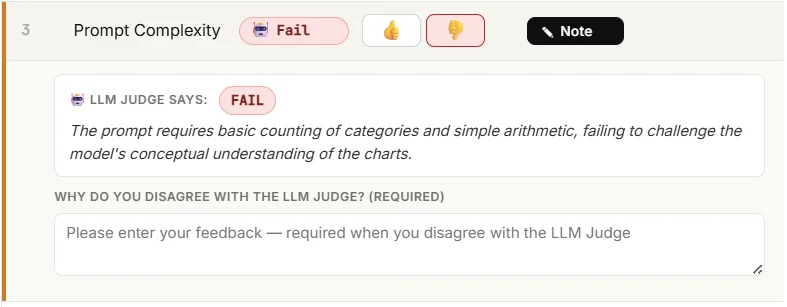
- Disagreeing? Notes are required — state why and how the Judge is wrong, referencing the question and image. Follow the feedback scenario blueprint.
- Agreeing with a correct fail that has flawed reasoning? Still agree with the verdict, and use the notes to explain how the reasoning fails.
Step 6: Provide Your Final Verdict
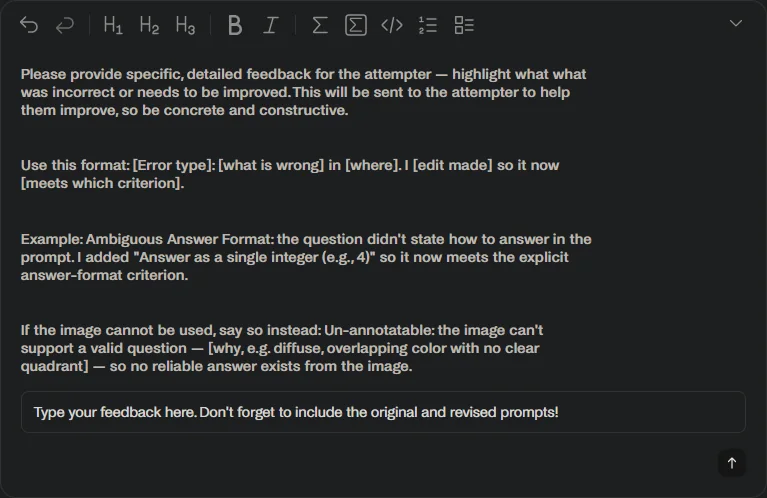
Give your final verdict per annotation — whether or not the prompt and answer pass — by approving/disapproving in the overall feedback box.
If you are returning an annotation to the annotator for rework, you must leave a downvote on this step. Without it, the task gets routed to the wrong step and never reaches the annotator.
Use the QC box to record your Disapprove/Approve decision and leave Feedback for the annotator. Keep feedback professional, concise, and constructive — show the before, the after, and the reason for the change.
The Research Priority Tag is optional. Adding one is preferred, but not every prompt will have a valid category. When one fits, use the Prompt Writing Strategies section of the VQA Task Workflow to match the annotation to the closest method.
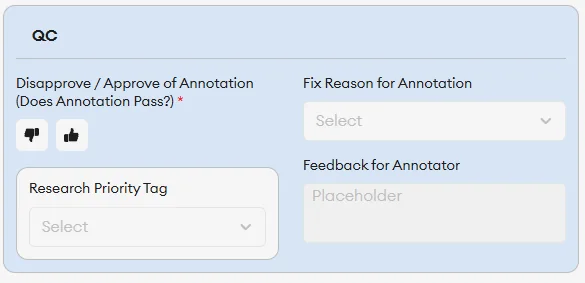
The final verdict is independent of the LLM Judge's feedback — it is the typical rating of how the annotator did, just like QA/Audit in v6 and before. If you notice anything wrong with the LLM Judge's Overall Feedback Summarization, note it in this same Feedback box, along with any additional comments.
Step 7: Update or Approve the Annotation
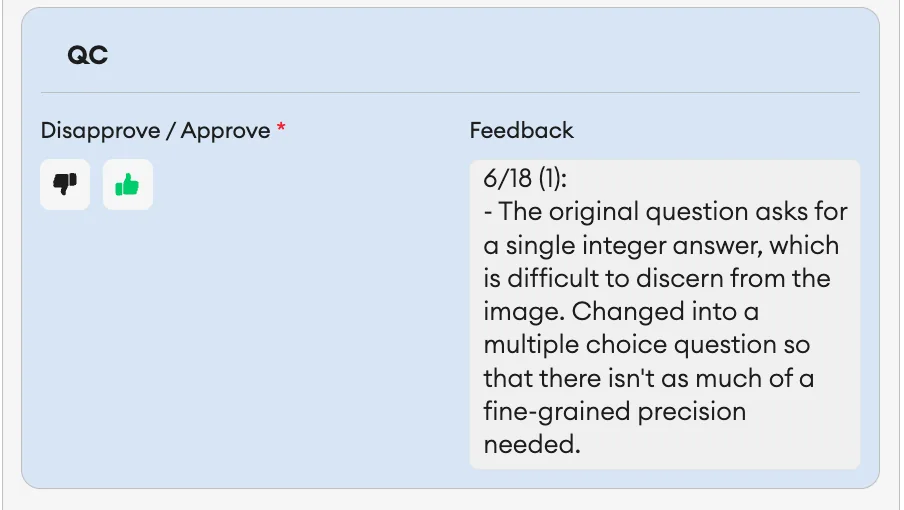
Change the annotation as needed. If the annotation is correct, mark it as approved with no changes required.
Step 8: Check the Model After Prompt Changes
Rerun the model after changing the prompt. Corrections outside the prompt do not need a model rerun. Check that the generated answer uses your latest prompt.
- If the model answers correctly: do not rerun the unchanged prompt. Assign SQS 2 and return the annotation to the annotator with feedback.
- If the model answers incorrectly: proceed to the next step, following the SQS guide. Any prompt change caps the score at SQS 3.
The new Model Stump Check (Stump the Model) in the Handshake AI Shadow Task is currently for annotators only. It is not part of review/QC or audit workflows. Reviewers and auditors do not run it, verify a passing result, or apply its three-wrong-answer threshold. The SuperAnnotate model-rerun and SQS rules above are unchanged. If this changes, there will be an announcement and the playbook will be updated.
Step 9: Report Findings in the Shadow Task and SuperAnnotate QC Box
Document your findings in both the Shadow Task on Handshake and the SuperAnnotate QC feedback box. Keep the two entries consistent. Keep it professional, concise, and constructive — show the before, the after, and the reason for the change.
This feedback is crucial: annotators cannot improve without seeing exactly what they did wrong and how it was fixed. Paste in the original prompt so the annotator can compare it against your revision, and include the revised question you wrote.