
Getting Started/Basics
The day-to-day mechanics of Project Lizard: how we communicate and how you submit a Handshake AI task so you get paid.
You must use your SuperAnnotate invitation link
Use the SuperAnnotate invite link sent to the email you signed up for Handshake with. Do not create an account another way or sign in with Google instead. An account created outside the invitation flow will not have access to Project Lizard, even if you use the same email. Wait for the invitation and follow its link.
Pass the assessment, then complete and pass 2 training tasks
After you pass the assessment, you must complete and pass 2 training tasks on the HAI platform before you can work on real tasks in SuperAnnotate. An AI grader automatically grades these training tasks. You'll receive your SuperAnnotate invite once you pass both. Expect Slack access within a couple of days of passing the assessment, and your SuperAnnotate invitation email within a couple of days of passing both practice tasks. Check the email you signed up for Handshake with, including spam and promotions folders.
New recording: Onboarding Bootcamp October 20th
Missed the bootcamp? Watch the Onboarding Bootcamp October 20th recording on the Recorded Trainings page before you start your training tasks.
Onboarding
Step 1 - Set up your Handshake AI Platform account
Set up payments and confirm your identity if you haven't already. Read all of the information in this Learning Hub and pass the assessment. You get one attempt at the assessment, so review the playbook carefully before you begin. Then, acknowledge additional project requirements.
Complete your Yardstik background check directly in the Handshake AI platform — there's no separate email or invite link to wait for. The form takes about 5–10 minutes and results usually come back within one week. You don't have to wait for it to clear: start tasking while it's still pending.
Step 2 - Join Slack and follow announcements
Slack is our messaging hub. Day-to-day questions, reviewer discussion, and pet photos all live there — but most importantly, it's where announcements are posted. You should receive Slack access within a couple of days of passing the assessment. Please allow that window before reaching out about access.
Stay up to date with announcements. Project Lizard moves quickly, and guidance, priorities, and workflow changes are shared in the announcements channel. Check in regularly so you don't miss updates that affect your tasks or pay.
Channels are in Reply Only mode. The team posts fresh threads each day — reply in those threads with your questions instead of creating your own.
Step 3 - Join an onboarding session
Joining an onboarding session is imperative to success on this project. Please join the onboarding session before proceeding past this step.
See the Live Meetings page for the full Onboarding bootcamp schedule in your timezone.
Step 4 - Complete and pass 2 training tasks on HAI
Complete and pass 2 training tasks on the Handshake AI (HAI) platform. An AI grader automatically grades these training tasks.
These tasks happen on the Handshake AI website. You claim them the same way you claim a normal task there. The Prompt Practice page in this playbook is not one of your training tasks. It's optional practice and doesn't count toward the 2.
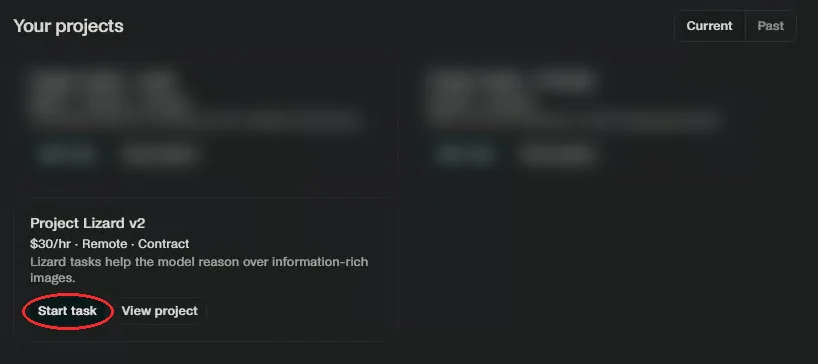
Where to find them: on the Handshake AI Projects page, click Start task on the Project Lizard card. As a trainee, claiming a new task gives you a training task. Not sure? Try it. If the task isn't what you expected, abandon it.
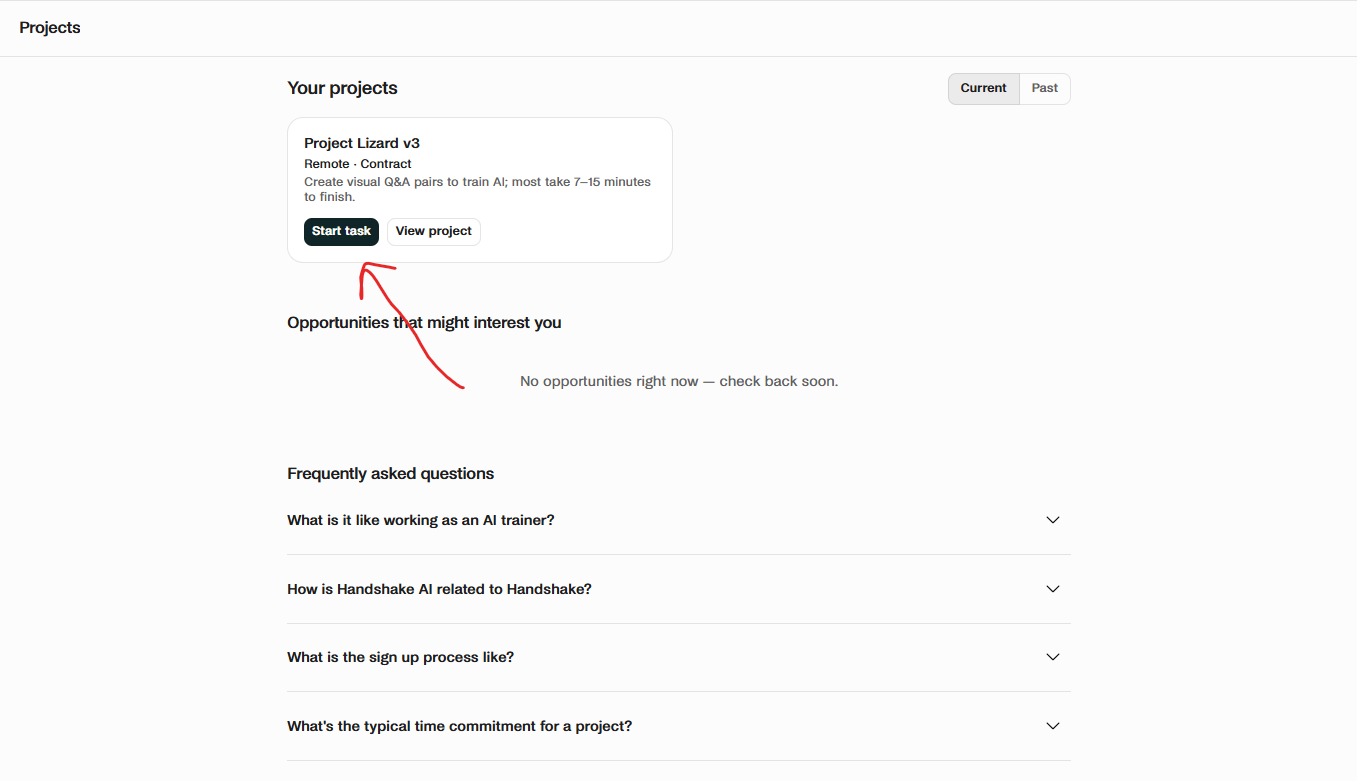
The trainee throttle limits you to 2 trainee tasks. This is separate from the main-project throttle you start with after training.
Once you pass both, you'll receive your SuperAnnotate invite and can work on real tasks in SuperAnnotate.
Step 5 - Get SuperAnnotate access
After passing your two training tasks, you'll receive an email from us within a couple of days. You must use the invite link in that email to set up your SuperAnnotate account. It will arrive at the email you signed up for Handshake with and should autopopulate that email.
Invitation required: creating your own SuperAnnotate account or signing in with Google instead of following the invitation link will leave you without access to Project Lizard. Using the same email alone is not enough — you must go through the invite link.
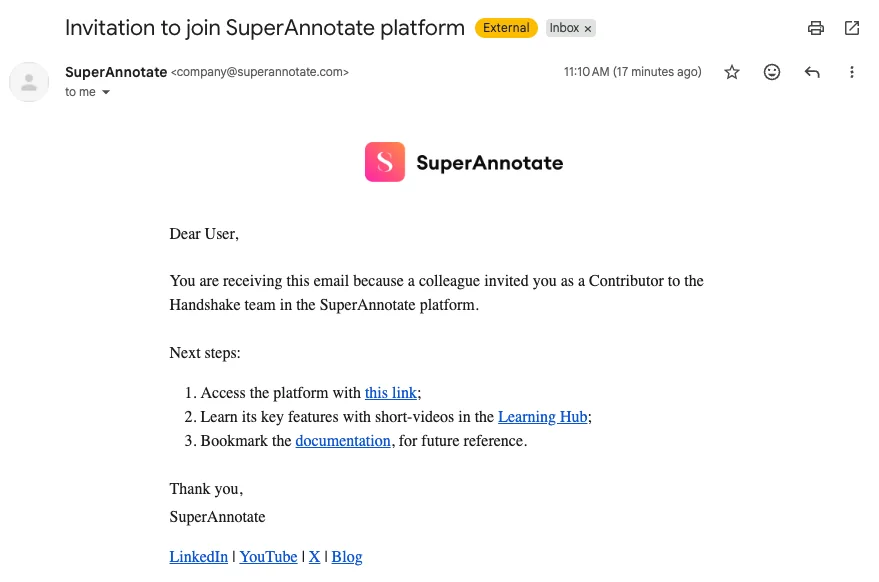
Note: If your invitation hasn't arrived after a couple of days of passing both practice tasks, check your spam and promotions folders, then contact HAI Support.
Watch it done: the Using SuperAnnotate video walkthrough on the Recorded Trainings page shows the platform in action.
Want the full picture? → Using SuperAnnotate walks through the platform end-to-end.
Be on the lookout for a SuperAnnotate invite email. Check your spam and promotions folders too, and accept the invite using the same email you use for Handshake. You must complete and pass 2 training tasks on the HAI platform before you can work on real tasks in SuperAnnotate.
Tasking
Step 6 - Request a task in SuperAnnotate
After you sign in you'll be met with a screen without tasks. Tasks are never sent to you automatically — annotators and reviewers must request them.
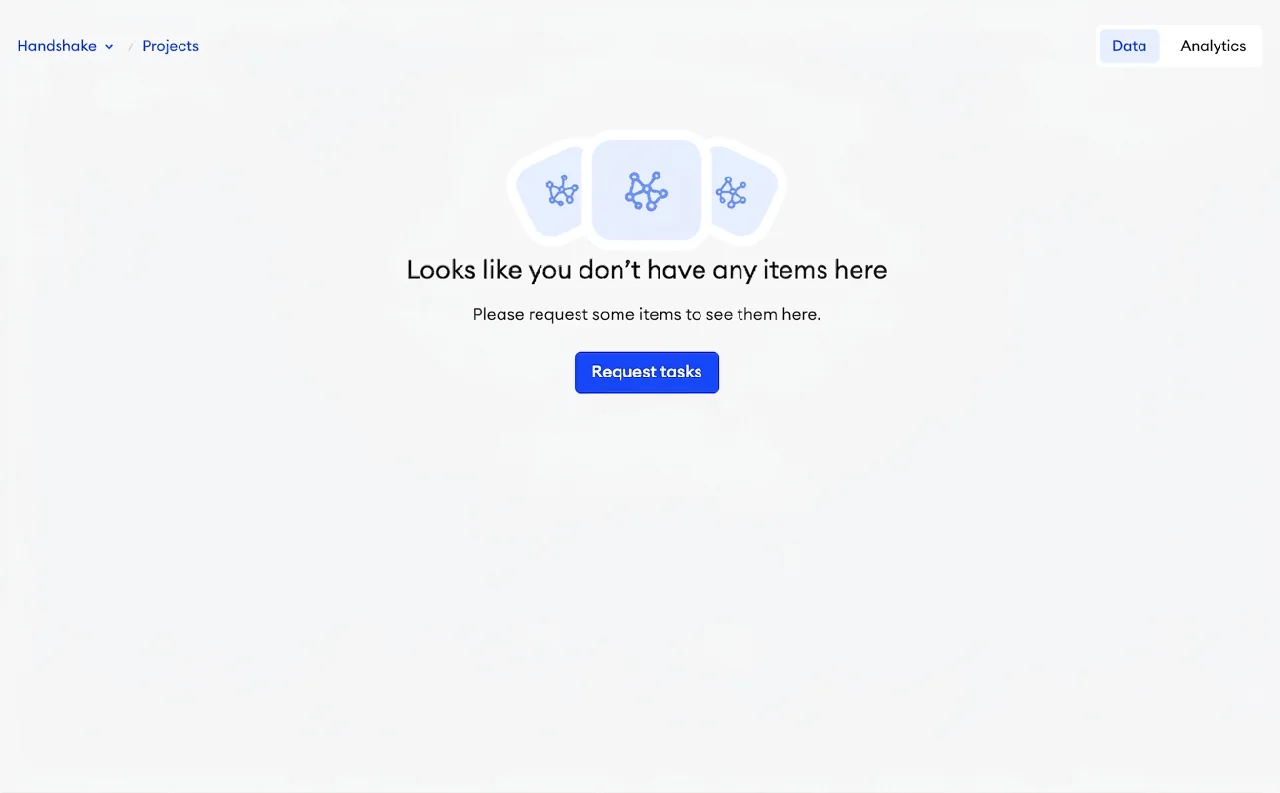
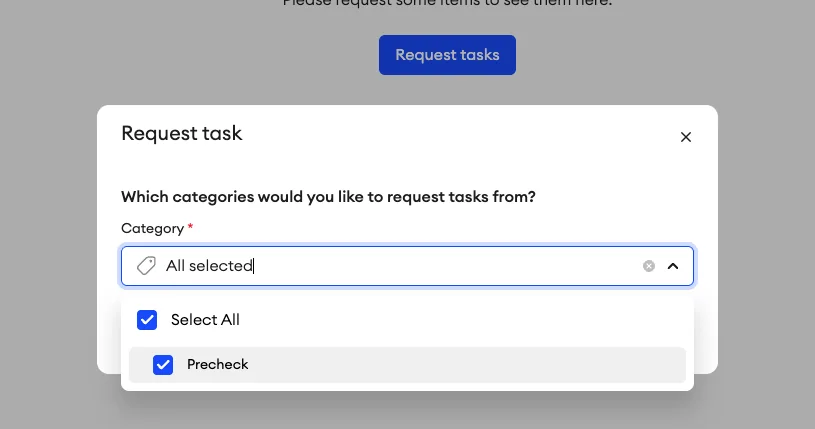
Be sure to click Request tasks and Select all, so the tasks you requested show up on your dashboard.
Want the full picture? → Using SuperAnnotate covers requesting, claiming, and submitting tasks.
Fellows can request up to 3 tasks at a time based on their capacity. The Request Tasks button is available as long as you have fewer than 3 tasks in your queue.
Finish your queue before requesting more. Work through the tasks already in your queue before hitting Request tasks again — this keeps the workflow smooth and prevents tasks from going stale.
Watch your task time limits. Newly claimed tasks have 4 hours from when you claim them, for Annotators, Reviewers/QC, and Auditors. Returned tasks have 12 hours from when they are returned before being reassigned. Finish and submit within the applicable window; after it expires, the task can be pulled from your queue.
Keep working as much as you'd like. Once your queue is empty, request another batch whenever you're ready to keep going.
Step 7 - Start a Handshake AI (HAI) task and set up the HAI Timer
Project Lizard uses Handshake AI tasks to track completed work and time spent on tasks and reviews in SuperAnnotate. No Handshake AI task, no payment. Handshake AI tasks are the only record we pay from, so anything not logged is invisible to us and unpaid. Each approved annotation is paid at a flat rate per task, regardless of time spent, and pays out once it clears review, quality audit, and the client check — so expect a delay between submitting and getting paid. See Getting paid for the full process.
Claim a task in Handshake AI by pressing 'Start task' on the homepage of AI work and follow the instructions to start your timer. Be sure you are filling out the supplemental questions correctly.
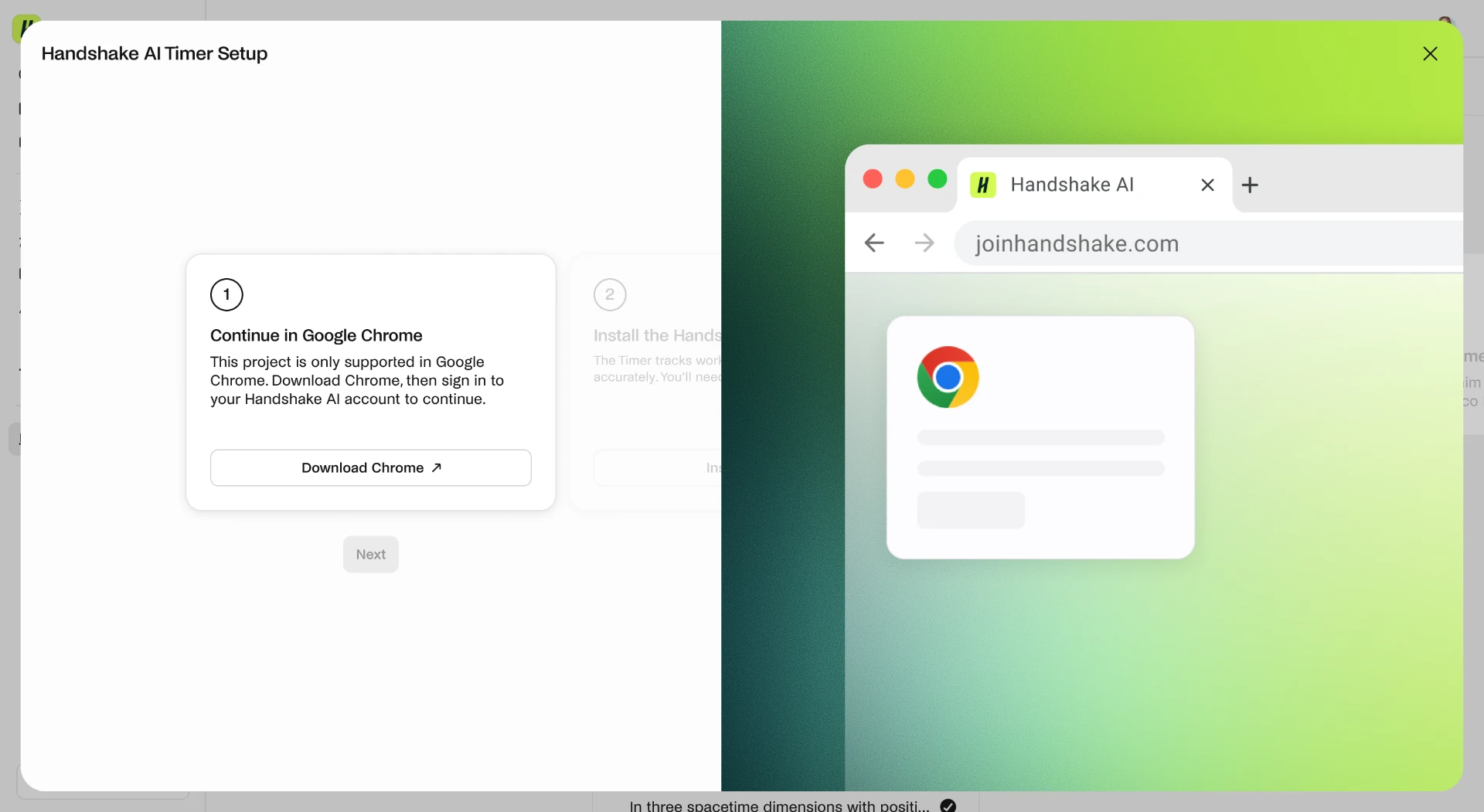
Set up the HAI Timer the first time you click Start task. The Handshake AI Timer is a Chrome extension that tracks the time you spend on each task and is used for screen monitoring while tasking. It replaces the previous use of Hubstaff on Project Lizard.
You'll be prompted to install it the first time you click Start task, and setup takes about two minutes.
For more details see the Using HAI Timer page in the Appendix.
You can find the SuperAnnotate task ID when your task has appeared. It is the string of letters and numbers before the
.jsonvalue. The HAI Timer should pre-populate the Handshake AI task with the SuperAnnotate task ID. If not, be sure to copy and paste the entire task ID (including.json).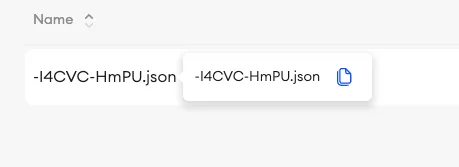
Confirm the task ID matches exactly.
One Handshake AI task per annotation. Only submit a Handshake AI task for work you complete in SuperAnnotate, and submit one Handshake AI task for each annotation you complete (or review).
When to use a Handshake AI task:
- Annotators: when you first create the annotation.
- Reviewers/auditors: when you review an annotation or submit a revised annotation from client audit /
Audit_II. Those failures currently return toAudit_I; always check theAudit_IIfeedback tab. Rebut incorrect feedback in the specific prompt'sAudit_Ifeedback, or fix correct feedback yourself and resubmit without sending it back to the annotator. See the Reviewer Playbook for the full procedure. Do not submit a task for processing an annotator-skipped task or an unusable image — that work is not logged and no time can be claimed for it. If an audit-return image is truly unusable or unsalvageable, report it in the reviewer/auditor Slack thread. Scrapped tasks are unpaid; do not log a Handshake AI task, and abandon any you already started. Do not spend too much time on scrapped work.
⏱ Timing: The HAI Timer should start automatically as soon as you start working on the annotation in SuperAnnotate. You can pause and resume at anytime. Submit the Handshake AI task as soon as you finish, and confirm your time.
Watch it done: the Logging a Handshake AI task video walkthrough on the Recorded Trainings page shows the annotator flow start to finish. Its new Model Stump Check is not part of review/QC or audit workflows.
Want the full picture? → Using the HAI Timer consolidates everything about the Timer and your Handshake AI task in one page.
Everyone starts the main project with a throttle. It caps how many tasks you can submit in a 72-hour window, and you may be put back on it if your quality dips. It is based on your recent first-pass approval rating, which is not currently displayed anywhere. We are working on improvements. This is separate from the 2-task trainee throttle, the SuperAnnotate queue limit, and the task claim windows. See Task access: throttles for details.
Remember to log your Handshake AI tasks, including your 2 training tasks, so your work is tracked and counted.
Step 8 - Work on your task in SuperAnnotate
Follow the step-by-step instructions in the VQA Task Workflow so your annotations meet all requirements.
For a veteran tasker's thought process, watch Live Workshop - Tasking Walkthrough (November 4th) on Recorded Trainings. It was up to date at the time of recording; future playbook updates and announcements take precedence as they occur.
Step 9 - Submit your Handshake AI tasks, then your annotation
Every annotation needs its own separate Handshake AI task. Run each one in parallel with the annotation you're working on in SuperAnnotate, and make sure it includes that annotation's task ID and the correct event_group_uuid.
Currently for annotators only: The new Model Stump Check (Stump the Model) in the Handshake AI Shadow Task is not part of review/QC or audit workflows. Reviewers and auditors do not run it, verify a passing result, or apply its three-wrong-answer threshold. The submission steps below are for annotators. If this changes, there will be an announcement and the playbook will be updated.
Pass the Model Stump Check before submitting. In the annotation's Handshake AI task, upload the image saved from SuperAnnotate and copy over the prompt and rewrite answer. Confirm they match SuperAnnotate exactly, then click Continue. You must pass the Model Stump Check before you can submit the annotation: the model must get it wrong 3 or more times. If it gets it wrong fewer than 3 times, revise your prompt in SuperAnnotate to ensure a solid stump, rerun the model and Check My Work, and copy the updated prompt and rewrite answer back into your Handshake AI task before running the check again. Do not retry an unchanged prompt. See Step 5: Model Stump Check for the full guidance and a passing example.
Once the annotation passes the Model Stump Check and you're done making changes, submit its Handshake AI task to stop the timer. You can adjust the timer after submitting if you believe it is inaccurate of actual time spent. Please be honest about your time!
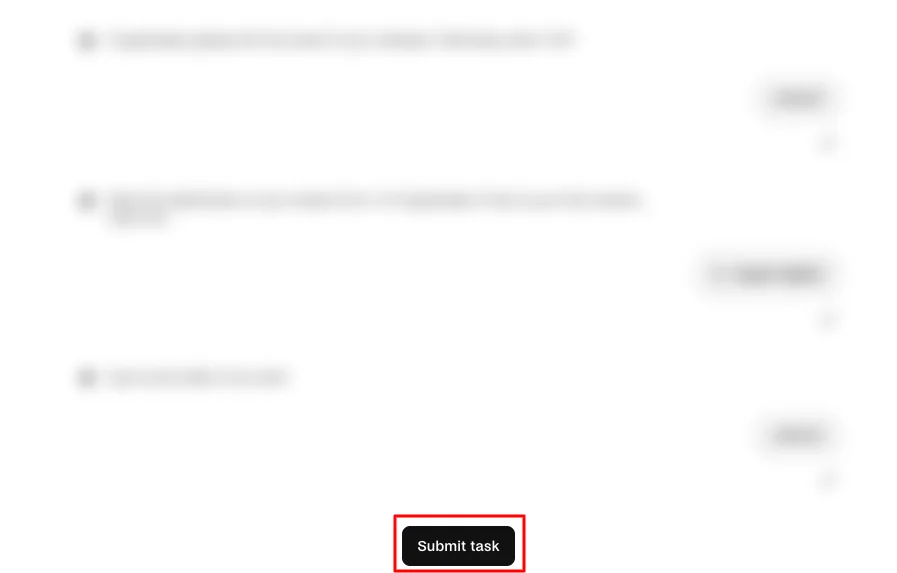
Only after every annotation is finished and every Handshake AI task is submitted, click Save and then submit the full task in SuperAnnotate by clicking Annotation Complete → Submit_to_QC.
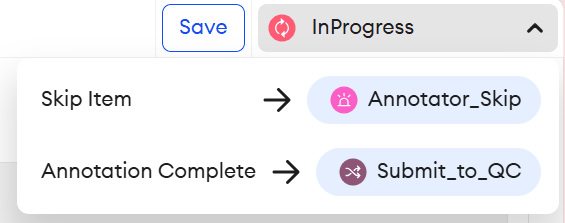
Disclaimer: clicking any of the options will automatically submit, so avoid pressing anything until you are done!
If you skip a Handshake AI task, Handshake AI can't record that work, and you may not be paid for it. Skipping Handshake AI tasks is also not a way around throttles.
Go deeper on the platforms
Each platform has a video walkthrough on the Recorded Trainings page and its own full guide — watch or read, then come back here and pick up where you left off.