
Using SuperAnnotate
SuperAnnotate is where all annotation and review work happens. Handshake AI is where you log time. This page pulls together everything about SuperAnnotate in one place: getting access, day-to-day use, and what to do when something breaks.
Step-by-step onboarding lives on the Training Task Quick Start. This page is the reference version — use it when you need to look one thing up rather than walk the whole path.
Part 1 — Getting Started
Step 1 — Get your account (invite only)
After you finish onboarding in Handshake AI, we email you a SuperAnnotate invite within 3–4 hours. Use the link in that email — it autopopulates the email tied to your Handshake AI account.
Do not create your own account and do not sign in with Google. Accounts made that way cannot be granted access to Project Lizard tasks. Wait for the invite.
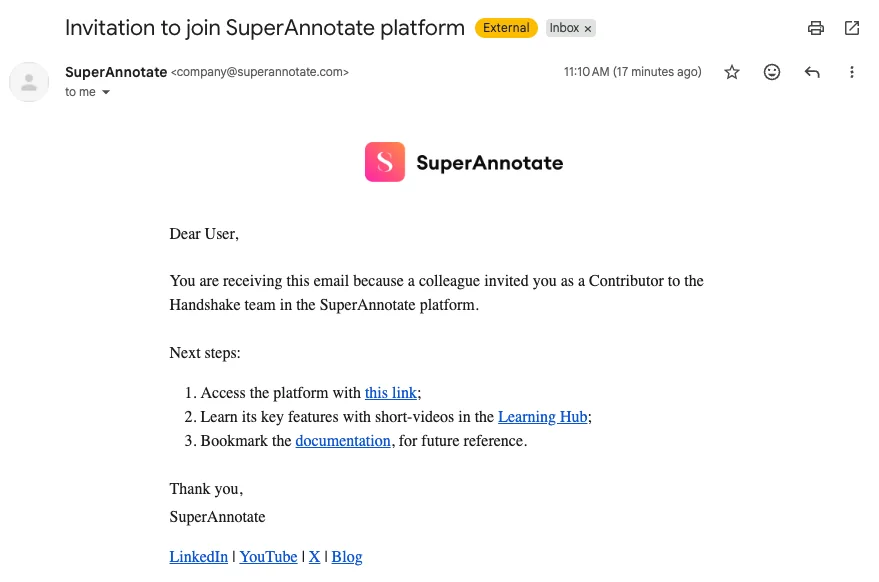
If nothing arrives within 4 hours, post in Slack.
Step 2 — Request tasks
Your first sign-in shows an empty dashboard. Tasks are never pushed to you — you have to request them.
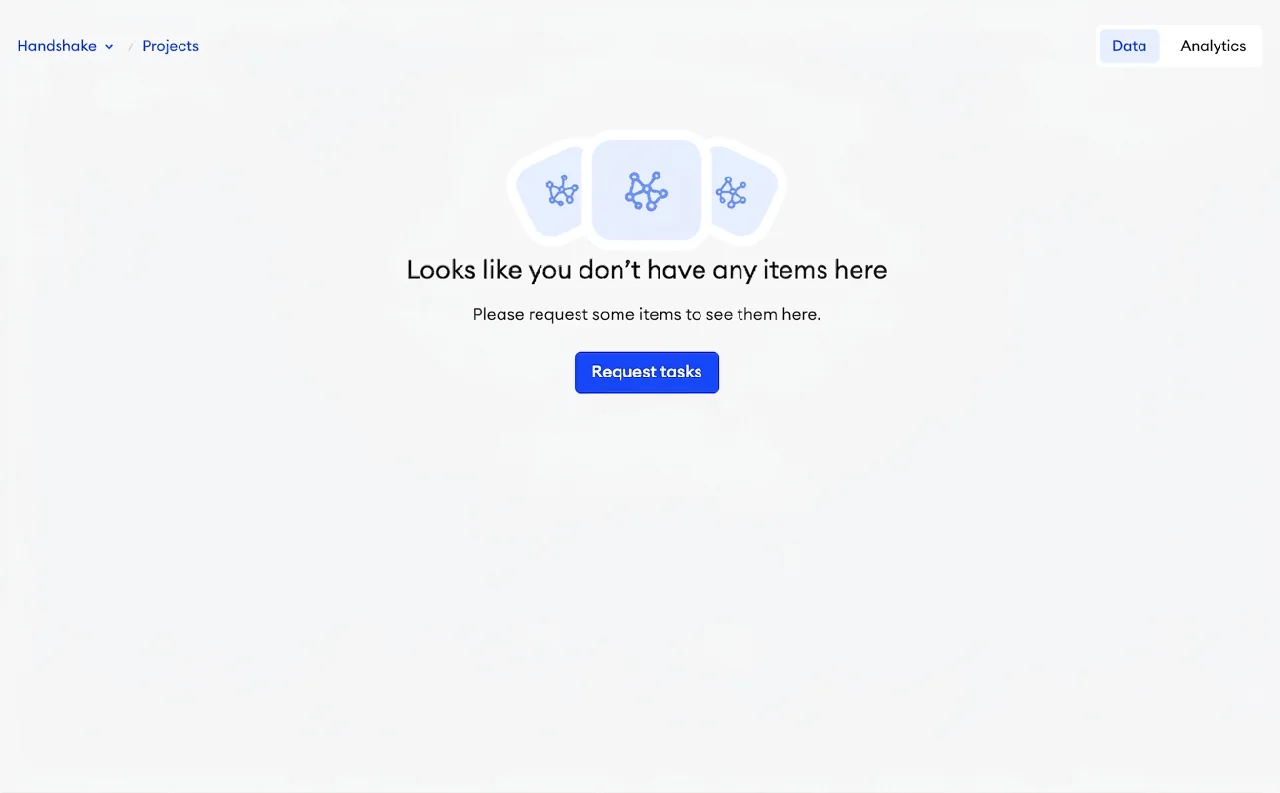
Click Request tasks and request all, so the tasks you requested land on your dashboard.
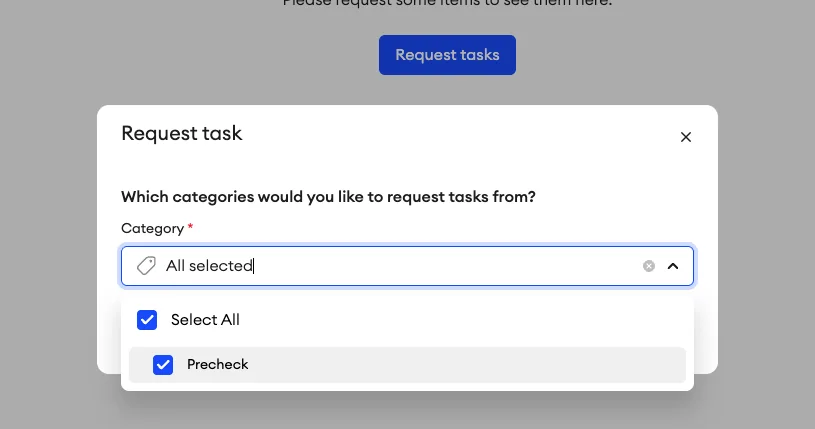
You can hold up to 3 tasks at a time. The Request Tasks button stays available while your queue is under 3. Work through what you have before requesting more so tasks don't go stale.
Step 3 — Pair every task with a Shadow Task
Time is not tracked in SuperAnnotate. Start a Shadow Task in Handshake AI as soon as you open a task.
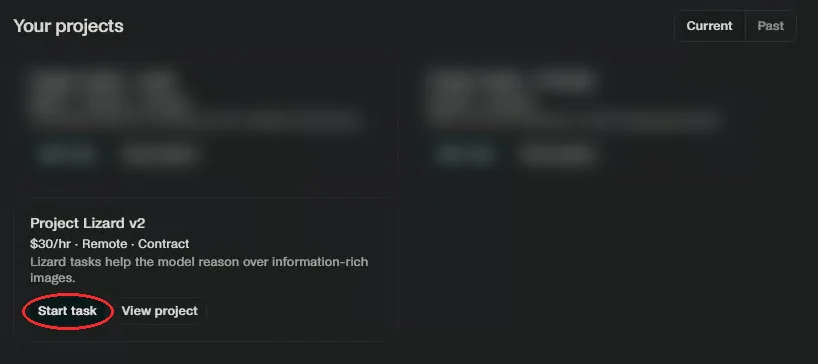
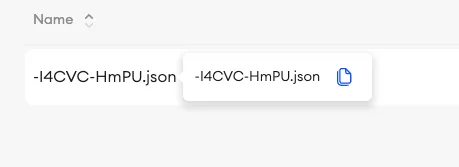
The SuperAnnotate task ID is the string before and including .json. Copy it exactly — payment can't be processed without an accurate ID.
Part 2 — How SuperAnnotate Is Used
Annotating a task
Inside a task you review the image, write your question, generate the model response, evaluate and rewrite, then validate. The full sequence lives in the VQA Task Workflow.
Use the save button next to the submission button in the top right often. Saving protects your work against reloads.
Reviewing (QC box and LLM Judge)
Reviewers record decisions in the QC box for each annotation and respond to every LLM Judge verdict. Feedback belongs in both the SuperAnnotate QC box and your Shadow Task.
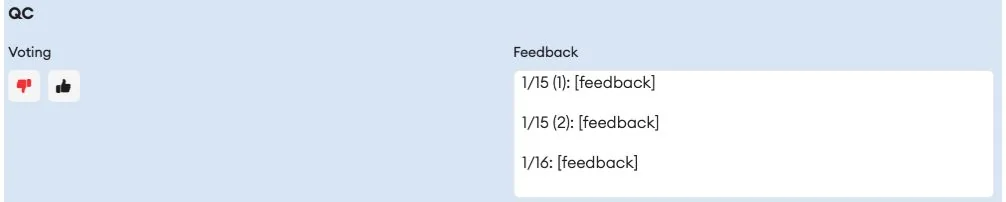
Full sequence: Reviewer Flow. Judge specifics: Handle LLM Judge Feedback.
Skipping and unusable images
Only annotators can skip an image, and only if it is truly unusable. Reviewers receive skips and decide: usable → Skipped, not usable → Unusable. Reviewers cannot skip a task in QualityCheck status.
See VQA Step 1: Review an Image for what counts as unusable.
Submitting
The steps below are for annotators. The new Model Stump Check (Stump the Model) in the Handshake AI Shadow Task is currently for annotators only and is not part of review/QC or audit workflows. Reviewers and auditors do not run it, verify a passing result, or apply its three-wrong-answer threshold; follow the Reviewer Flow instead. If this changes, there will be an announcement and the playbook will be updated.
Submit each Handshake AI task (Shadow Task) as soon as its annotation is complete and has passed the Model Stump Check. Confirm your time when submitting it.
Only submit the full SuperAnnotate task after all individual annotations are complete and all their Handshake AI tasks are submitted. Then set the status dropdown from InProgress to Annotation Complete → Submit_to_QC.
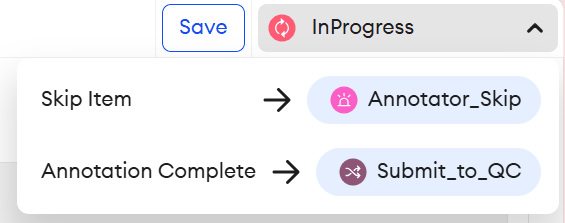
Clicking any option submits immediately — don't touch it until all individual annotations are complete and all their Handshake AI tasks are submitted.
Part 3 — Troubleshooting
Refreshing the page, or closing the tab and reopening it, fixes most problems in SuperAnnotate. It's always worth a try before anything else — just save your work first.
Done here? Head back to the Training Task Quick Start to pick up where you left off.